

Yes, you read the title right! This is not a click bait 🙂 Calculator is one of the many simplest utilities that exhibits the versatility of Emacs. At first, the Emacs calculator might be un-intuitive.
- If you would want to do
2+2, the calc complains and no result appears. - The layout is daunting. You asked for a calculator, but then there is a split window that pops up and when you enter, the text appears in another window (it’s called minibuffer btw)! Whatttt ?!!
- While the layout is daunting, the interface also looks too simple. Where do I perform advance operations? Trigonometric operations such as sin, tan, cos etc.. or how do I do programmer operations such as bit shift, display data in hex etc.. ?
I attempt to address some if not all of these questions in the below blog.
Why do I care?#
Before we begin, let’s address the Elephant in the room.
There are many calculators out there, some with UI, some command line. Why do I need yet another calculator? that too in a text editor 😉
Well, that is a difficult question to answer as there is no objective way to say a specific calculator is better than another. But, here are my reasons why you should consider using calculator inside Emacs.
No jumping around applications#
Everything you care about, text, code, documentation and now a calculator would be in one frame (a single window if you will) which arguable reduces distractions in an already distracted world.
Uniformity#
Your work might demand you to switch between different Operating systems (Linux, Mac or Windows) or different machines with varying permissions to install the calculator apps you like. When using a calculator inside Emacs, it is a far more consistent user experience.
Extensibility#
Assume you have a common operation that you need to perform over and over again. You can store the formula and/or operation in a quickly accessible command and use it without manually performing the operation manually over and over again
Anti-mouse#

There’s a key, a shortcut, a quick way to get there to calculate an expression without ever touching the mouse
Anatomy of a Emacs calculator#
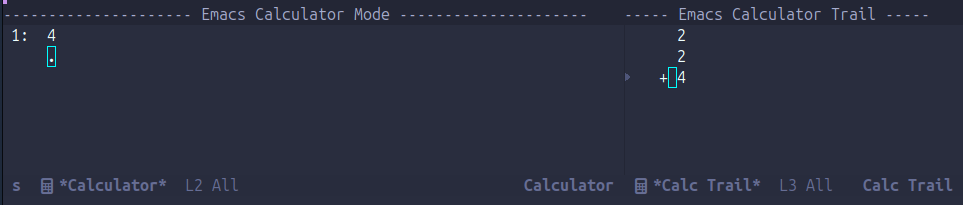
When you run Meta + x + calc or the shortcut Control + x + * + c, you would be greeted with a pop-up window as shown in the image above. Yours might appear slightly different depending on your theme and configurations. As one may notice, the new window is vertically split into
Calculator#
Where the operations and result appear as you type it. This is where your entered your values, formulae, operators gets evaluated
Calc Trail#
This is the window on the right side and is responsible for capturing all the history of the operation such that you can go back in time, refer to a previous value etc. Think of this as a timeline of all the values, operations you entered.
Usage#
Enough of theory, let’s start calculating.
Something to remember is that Emacs calculator uses (but not limited to) Reverse Polish notation (RPN) to input values and operations to be performed. Say, you want to perform 2+2 instead of the usual way where you enter 2 + 2, the RPN notation expects the input to be entered as 2 2 +
Of course, this is not the only way to input. If you resist to learn the RPN notation, there is a more natural way to input the values and operations. Start by pressing ’ on your keyboard (while at Emacs calc window) and it should pop up minibuffer expecting Algebraic expression. Now you can enter the expression a normal way I.e 2 + 2 and Enter. You would see the Emacs calc window updating with the result.
Storing and recalling a result#
Type s t x where ‘x’ being the variable you would want to store the result in. The most recent result would be stored in the variable (that you mentioned in the place of ‘x’)
To recall the saved value/expression, use s r x. Again ‘x’ being the variable you had stored earlier
Algebraic expressions#
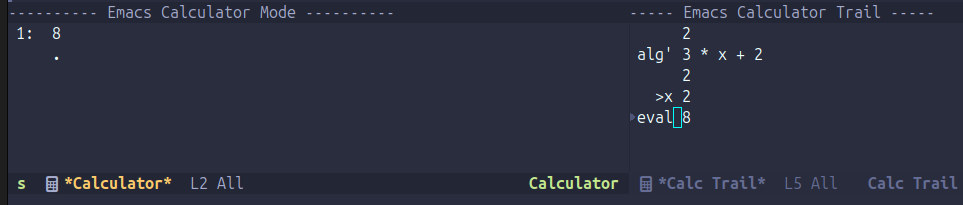
Apart from storing and recalling, you could also use it as a part of algebraic expression. For example, let’s say you would want to compute 3x+2 where ‘x’ is a variable that you need to change and recompute the solution. Here’s how you might achieve this.
- Enter algebraic expression with ’ followed by
3x+2 - Enter the value for ‘x’ say 2 and press Enter
- Store the value 2 in x with s t x
- Evaluate the earlier expression with the newly stored value by entering =
Now, if the value of x is updated and the expression is evaluated with =, the expression evaluates with the updated value of x! How cool is that ?!
The screenshot above demonstrates this. follow along the Calc Trail buffer
Display modes#
As a programmer myself, it is of paramount importance that I see the data in different radii systems. At times, I want to view the data in base10 format and sometimes in hexadecimal (base16) format. Emacs calc does this very efficiently with the ‘display mode’.
From the calculator buffer, type d, this is your entry-point to switch to different radii. For example, type d6 to display the data in the hex format. To revert back to base10 type d0
Custom operations#
Let’s assume as a programmer, you would have to frequently convert between storage sizes (kilobytes, megabytes, gigabytes etc…). Instead of performing the following
- Enter the number
- Type 1024 (for KiB calculation)
- Press enter to view the value.
I want to enter the value in the calculator stack and use that value to directly calculate Mib, Gib etc. Well, Emacs provides a facility to develop your own custom math function that can be triggered from within Emacs calculator!!
Unlike the classic defun for an emacs lisp function, we use defmath to define a formula. We can make it interactive I.e, available to be displayed in the list of supported functions from within the calculator and also provide the name to be displayed as (KiB, MiB, GiB). These functions can be evaluated by pressing x in the calculator and are displayed as calc-* (calc-KiB, calc-MiB…)
Here is an example code that implements this
(defmath KiB (n)
  (interactive 1 "KiB")
  (* n 1024))

(defmath MiB (n)
  (interactive 1 "MiB")
  (* n (^ 1024 2)))

(defmath GiB (n)
  (interactive 1 "GiB")
  (* n (^ 1024 3)))
Conclusion#
I was deeply humbled by the capabilities and simplicity provided by this simple yet powerful utility. I have only begun to scratch the mere surface of this calculator utility and there is so much more to explore.
I highly recommend going through the calc docs to get a better understanding of the utility. The manual also supports interactive tutorial where you can get a guided hands-on
As always Emacs never cease to surprise me.
Share and support the blogpost . Happy hacking 🎉