

Usecase#
Who is this for? - Developers ofcourse! But, tinkerers, thinkers, hustlers, welcome to you too 🫠 If you are working in an organization, you are more likely to have a mediocre laptop that you would use to connect to a powerful server to develop, build, test and deploy code. Companies prefer this for
- Code security - Code reside within the company
- Efficient resource utilization - Not everybody is running the intensive operation all the time. This way, there is resource sharing such that the power of the hardware is efficiently utilized and justified
- Cost efficiency - It would cost less to have 1 powerful build system and mediocre laptops than vice versa.
Next obvious question is
Where would you be running your emacs ?
You have couple of options
Run Emacs locally and access the code over tramp. This might be a feasible option but might turn out to be slower
SSH into the remote setup and develop there. Really? as-if developers life isn’t difficult already 😉
Have an Emacs session running remotely and connect to it when required. Arguably the best hybrid approach. This way,
- You can have uniform experiences from all the clients you connect from.
- Avoid configuration chaos and setup cost for every new client you get.
- Run something even after you log out the client system (Think long build setup, code fetch or big repo setup etc. can be done overnight)
Yes, I hear you, there are multiple alternative like tmux, vim etc. But why use another application if Emacs can do-it-all ?!
Overview#
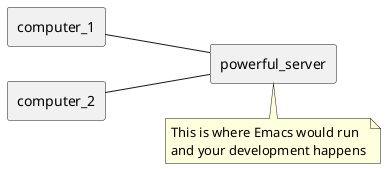
What we are after is represented by the diagram here. You have a powerful machine (typically a server) where you setup your development environment, pull the code, do modifications, compile etc…
Misconception#
Remember, Emacs was built way before the many of the modern standards existed. So when someone says “Running Emacs in server-client architecture”, this is what one might think it would look like
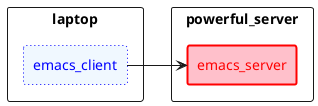
However, In Emacs, the frame rendering code is integrated with the Emacs core software. Checkout this emacs stack exchange thread . Having said that, this is how your setup would look like

Yeah! it is a little disappointing if you were expecting a former than later. But, there is nothing to complain about.
Essentially, you are connecting to emacs over ssh. But what’s split is the workload. The server is what keeps things alive and client is what is presented to the user to interact with all things maintained by the server
The TCP connection was added to support non-UNIX compatible systems. Preferably use UNIX sockets when possible
The -X in the ssh connection is for X11 forwarding to render UI on client system
Configuration#
Emacs is shipped with 2 primary utilities
- emacs - The complete package
- emacsclient - A stub that requires a “emacs-server” to connect to
I am assuming you are running on a linux distro. My configurations are for Ubuntu OS.
Using Emacs in a server-client setup involves 2 steps
Starting the server#
By default, Emacs does not start the server. The term “server” means that the application opens a socket (for UNIX or port for TCP) and accepts all the request arriving at the socket/port. There are 2 ways to start a server in Emacs
pre-requisite for non-UNIX compatible system#
A caveat – For some reason, if you are not able to use a UNIX socket (say you are running on a windows machine). You would have to do some additional configuration in your init.el file
;; Use tcp not UNIX sockets
(setq server-use-tcp t)

;; Host, port configuration
(setq server-host "<your server hostname/IP>")
(setq server-port "Port number of your server")

;; Authorization generated using `M-x server-generate-key`
(setq server-auth-key variable "Your authorization key")
;; Note that
;; Auth key must have
;; - 64-ASCII printable characters
;; - Only characters from ‘!’ to ‘~’, or from decimal code 33 to 126 are valid
Existing session#
If you would want to open the socket/port for the existing session, you could do M-x server-start . This would open up the socket/port for the Emacs session that you are currently running.
Startup#
If you want to launch Emacs in a Server-client configuration from the get-go, Run it as a background/foreground process
emacs --bg-daemon
# OR
emacs --fg-daemon
Each of these commands also accepts a name. This “name” would be the name of the socket/port which acts as an alias to the connecting client. We will see how this name is used when we connect to this sever from a client.
You can run emacs --help for more information
Connecting to the server#
Now that our server has started, let’s connect to it. But, before we begin, ensure you have following things ready
- Remote machine address (This is where you started server in the previous step)
- No Firewall restrictions
- Name of the server you previously started
- Stable network connection
- User access permissions
The name of your server can be found at <your-emacs-config-dir>/server/. However, you can pre-assign the name and the location you would want your server-file to be present. We will see how to configure this in subsequent section.
Once, all the above checkpoints are validated, proceed to start the emacs client and connect to the server. You can do this with the following command
# Socket connected server
emacsclient -c -s <location>/<name>

#
#----OR----
#

# TCP port connected server
emacsclient -c -f <location>/<name>
Suggestions#
Having incorporated server-client way of using Emacs for my day-to-day work, I have realized few nuances that makes the experience of using it much better. Here are my suggestions.
Socket vs TCP#
I strongly recommend to use socket over TCP wherever possible. It is not only faster but easier to configure as well.
Custom name and path for server file#
As mentioned earlier, by default, Emacs stores the server file (The file created when Emacs server starts) at <your-emacs-config-dir>/server/ and a default name. If you want to customize this, you can do so by setting the following variables
(setq server-name "your-custom-name")
(setq server-socket-dir "<path-where-you-want-to-place-server-file>")
Of course you can C-h v <above-variable> to know more about the variables set above and their configured defaults
Auto-start the Emacs server#
Instead of manually starting the Emacs server every-time, you could auto-start it when your server boots up (basically, powered on). To do this on Ubuntu, you can create a *.service file in ~/.config/systemd/user/emacs.service and copy the following
[Unit]
Description=Emacs text editor
Documentation=info:emacs man:emacs(1) https://gnu.org/software/emacs/

[Service]
Type=simple
ExecStart=%h/<local-path-from-home-dir>/emacs --fg-daemon
SuccessExitStatus=15

Restart=on-failure

[Install]
WantedBy=default.target
Post this, you need to “enable” in order to start this server (a.k.a background process) every-time on server startup
# Enable to auto-start on boot
systemctl enable --user emacs

# Start the server manually
systemctl start --user emacs
Creating a Desktop file#
As far as your Client-side (conventionally speaking) is considered, you can improve the ease of connecting to the remote server with the creation of *.desktop file. This is what is displayed on Ubuntu as applications. We would create a shortcut to be able to quickly connect to remote server.
Create ~/.local/share/application/emacs-remote.desktop file and copying the below content in it
[Desktop Entry]
Name=remote-emacs
Comment=Text Editor
GenericName=Text Editor
Exec=ssh -X <username>@powerful_server emacsclient -c -s "<absolute-path-to-your-socket-file>"
Icon=emacs
Type=Application
Terminal=false
Categories=Utility;TextEditor;Development;
StartupWMClass=Emacs
With this configuration, you should see an application called “remote-emacs” in your apps tray.
Conclusion#
Considering the client and server live on the same machine, the actual file operations are blazing fast as compared to working over TRAMP. At first, this might seem weird. But, once you get it up-and-running and get a hang of it, there is no going back.
If you find value in this article, consider sharing it with others and show some love!
Happy hacking 🎉